Connect your existing number to fonea (call forwarding)
Last updated 3 July 2026
You don't need to change your phone number or port anything. You keep your existing business number and set up call forwarding (also called call divert): if nobody at your end picks up, the call is automatically forwarded to your fonea assistant. For your customers nothing changes — they call the same number they always have.
In short: Activate "forward when unanswered" on your number with your fonea number as the destination. If nobody picks up after around 20 seconds, the assistant takes over. Activation is free with most providers, and the original caller's number remains visible.
How it works
Call forwarding is a feature of your phone provider: it says "forward calls when I don't pick up". That's exactly what we use.
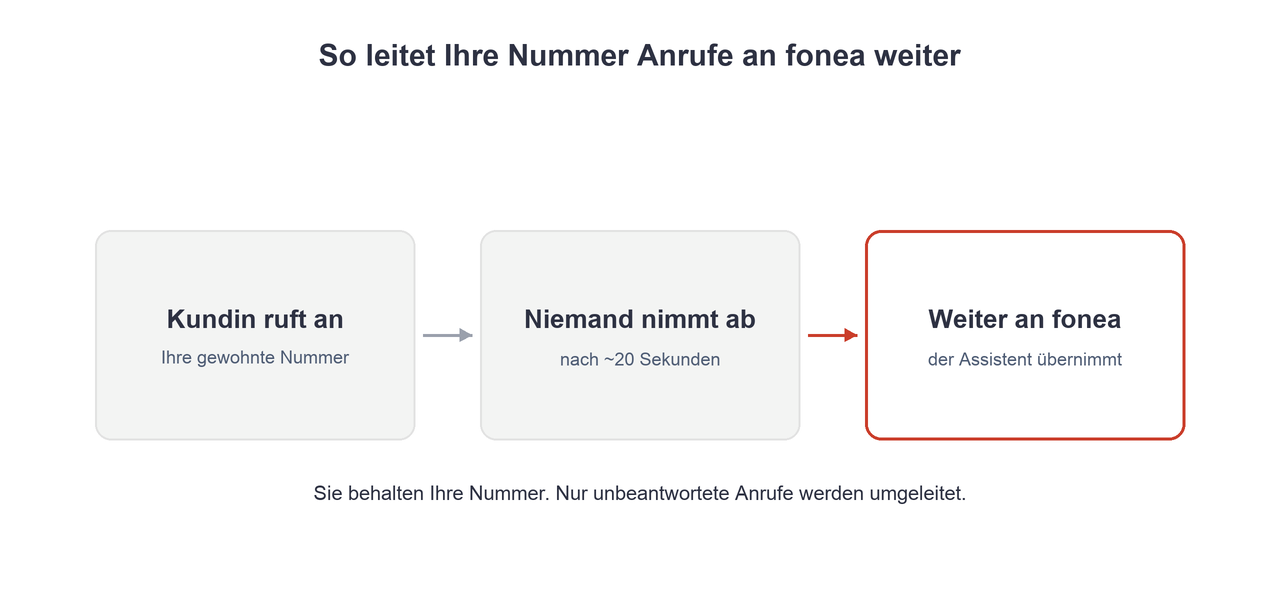
You set up "forward when unanswered" on your existing number. If the phone rings for a few seconds without anyone picking up, the call automatically goes to your fonea number — and the assistant takes over. If you answer yourself, nothing happens; only unanswered calls are forwarded.
You receive your fonea number when you set up your account.
Quick setup (GSM code)
On a mobile phone this takes about 10 seconds:
- Open the phone dial pad (as if you were making a call).
- Enter the forwarding code for unanswered calls with your fonea number in it.
- Press the call button. You'll hear a confirmation tone — done.
The standard GSM code is *61*NUMBER*11*20# — replace NUMBER with your fonea number. It works on most European mobile networks, including EE, O2, Vodafone and Three in the UK, and Movistar, Orange and Vodafone in Spain.
The 20 is the delay in seconds (around 5 rings). You can change it to 10, 15, 25 or 30. If the standard code doesn't work on your network, check your provider's help pages — some providers use their own codes or let you set forwarding in their app.
Optional: also forward when busy
If the assistant should also take over while you're on another call, additionally activate forwarding when busy. The code for this varies by provider (commonly *67*), so check your provider's help pages for the exact variant.
Good to know
- Caller ID is preserved. The original caller's number remains visible — so the assistant knows who called.
- Costs. Activating the forwarding is free with most providers. You pay for the forwarded call at your normal rate; with most flat tariffs there are no extra costs.
- Abroad. When travelling, roaming rates may apply — deactivate the forwarding if needed.
How to deactivate the forwarding
You can switch the forwarding off again at any time:
- Only forwarding when unanswered:
#61# - All forwarding at once:
##002#
Frequently asked questions
Do I have to change or port my number?
No. You keep your existing number and simply set up call forwarding.
Will my customers notice anything?
No. They keep calling the same number. Only unanswered calls reach the assistant.
What does call forwarding cost?
Activation is free with most providers. Forwarded calls are billed at your normal rate and are included in most flat tariffs.
Does this also work on a landline?
Yes. Landlines often use slightly different codes or a settings menu — check your provider's help pages for the exact steps.
How do I switch the forwarding off again?
With ##002# you deactivate all forwarding at once, with #61# only the forwarding when unanswered.
Related articles
Still have questions?
Write to us — we're happy to help. Or listen to a live demo right in your browser.