Book appointments without an email address (Cal.com)
Last updated 31 August 2026
It happens all the time, especially with older callers or spontaneous appointment requests: the person on the phone has no email address — or simply doesn't know it by heart. By default, however, Cal.com requires an email as a mandatory field when booking.
The good news: you can change that with a single setting in Cal.com. After that, a phone number is enough, and your fonea assistant books the appointment right in the call — without having to ask for an email.
In short: Open your appointment type in Cal.com, switch the toggle in the Confirmation section from Email to Phone and save. The phone number becomes the required field instead of the email. Then refresh the import in fonea — done.
What you need
- A Cal.com calendar that is already connected to fonea. Not set up yet? See Connect your calendar to fonea.
- Two minutes — the setting takes just a few clicks per appointment type.
Step 1: Open your appointment type in Cal.com
Sign in to Cal.com (or cal.eu if you chose the "European Union" data region when registering — the setting is identical there). Under Event types, open the appointment type your assistant offers on the phone and switch to the Advanced tab. There you'll find the Booking questions section — the fields that must be filled in when booking.
Step 2: Switch from "Email" to "Phone"
At the top of the booking questions you'll see the Confirmation section ("What your booker should provide to receive confirmations"). Switch the toggle from Email to Phone and click Save.
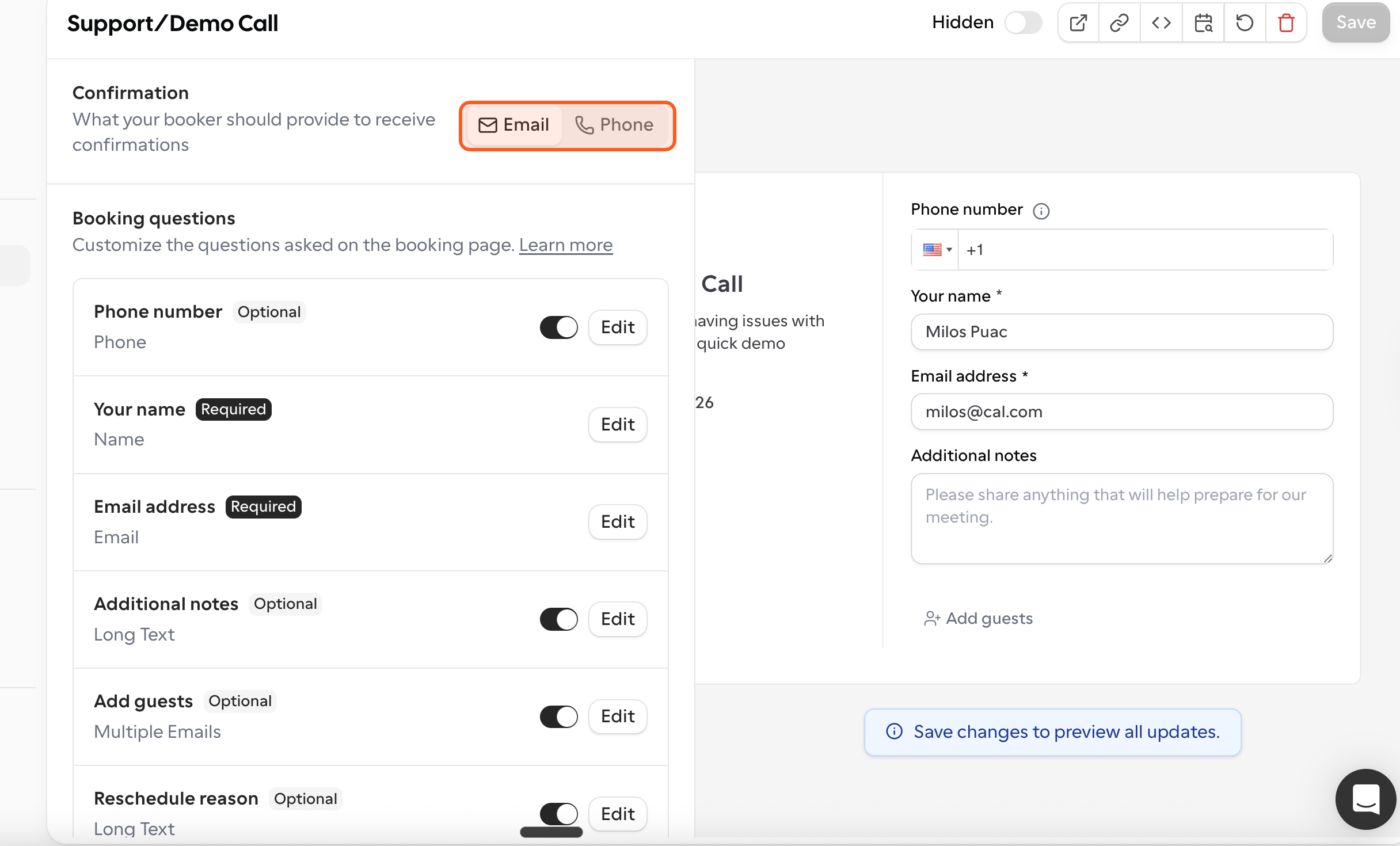
This makes the phone number the required field instead of the email address: Cal.com's own help describes the setting as making the phone number the required field through which the booker receives confirmations. You'll find Cal.com's guide in their help article Booking Questions.
Set it per appointment type. The setting applies to one appointment type at a time. If your assistant offers several appointment types, repeat the two clicks for each of them.
Step 3: Refresh the import in fonea
Open your fonea dashboard, go to Settings → Appointment booking and click Refresh import. This lets fonea pick up the changed required fields of your appointment type.
What changes on the phone
When booking, your assistant automatically follows the required fields of the appointment type:
- Before (email required): The assistant has to ask for an email address during the call — error-prone over the phone, and a dead end for callers without email.
- After (phone required): The assistant captures name and phone number and books the appointment directly. The appointment appears in your Google or Outlook calendar as usual, and the caller confirms date and time right in the conversation.
You lose nothing: the appointment in your calendar carries the person's name and phone number — so you can call back any time if something changes.
Frequently asked questions
Why does my assistant ask for an email at all?
The assistant asks for exactly the fields your appointment type marks as required in Cal.com. As long as "Email" is set as the confirmation field there, the email address is part of that. After switching to "Phone" (and clicking Refresh import in fonea), it no longer is.
Does the caller still get a confirmation?
The appointment is confirmed right in the conversation: the assistant states date and time, and the caller confirms. The appointment is then automatically written into your calendar — where you'll see the person's name and phone number.
Does the setting apply to all my appointment types?
No, it applies per appointment type. Switch the toggle on every appointment type your assistant should offer.
I can't find the toggle — what now?
Cal.com keeps evolving its interface; labels may differ slightly. In the opened appointment type, look for Booking questions or Confirmation (usually in the Advanced tab). If in doubt, Cal.com's help article Booking Questions has the details.
Related articles
Still have questions?
Write to us — we're happy to help. Or listen to a live demo right in your browser.